Inviting people to your Business Manager is a straightforward process that allows you to collaborate more effectively by granting the right access to the right team members. Whether you're adding new employees, clients, or partners, here's a step-by-step guide to help you invite people to your Business Manager.
Step 1: Access Business Settings
Start by logging into your Facebook Business Manager account. Once you're in, navigate to the Business settings section. This is where you can manage users, assets, and various other settings related to your business.
Step 2: Navigate to People Management
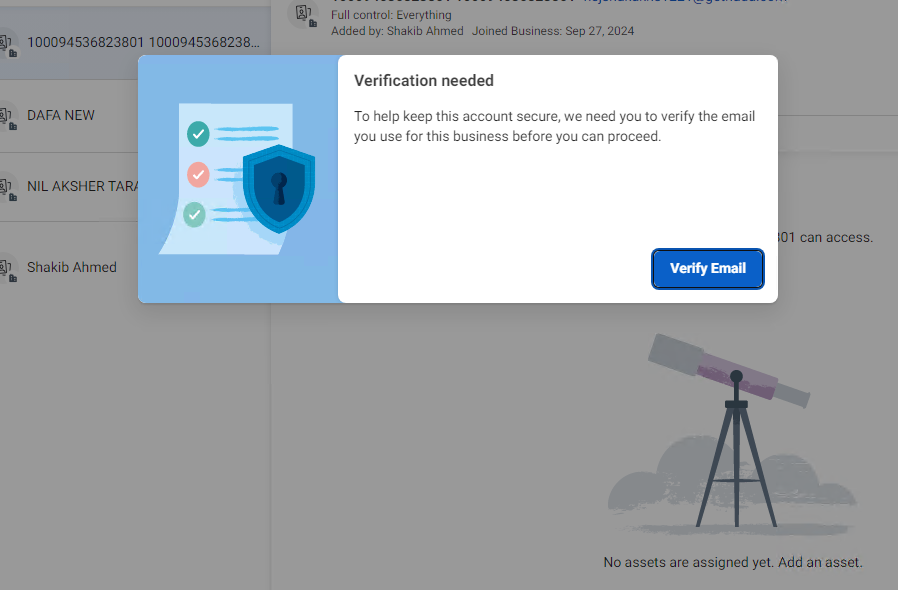
In the Business settings menu, you'll find several options. Look for the Users section and click on People. This is where you manage all the individuals who have access to your Business Manager.
Step 3: Invite New People
To invite someone new, click on the Invite people button. This will open a form where you can enter the details of the person you want to invite.
Step 4: Enter the Email Address
In the invitation form, enter the email address of the person you want to invite to your Business Manager. Make sure the email is correct, as this is where the invitation will be sent. Once you've entered the email, click Next to proceed.
Step 5: Assign Access Level
Next, you'll need to select the type of access you want to assign to the person you're inviting. Business Manager offers different levels of access, so choose the one that best fits the role of the person you're inviting. Once you've made your selection, click Next.
Step 6: Assign Assets and Permissions
In this step, you'll assign specific assets (like pages, ad accounts, or catalogs) to the person. You can also choose the type of access they will have to these assets. If you're assigning partial access, make sure to select the task-based permissions that they need to perform their job effectively. After assigning the necessary assets and permissions, click Invite.
Step 7: Review and Send Invitation
Before sending the invitation, review all the details to ensure everything is correct. Once you're satisfied, click Send request. The person you invited will receive an email with an invitation to join your Business Manager.
Step 8: Waiting for Acceptance
Once the invitation is sent, the person will need to accept it via email. After they join your business portfolio, it may take a few days for all features to become fully available to them.
Conclusion
By following these simple steps, you can easily invite people to your Business Manager and ensure they have the appropriate access to help you manage your business assets. This process is essential for effective collaboration and secure management of your business operations.
Video: https://www.youtube.com/watch?v=QsTgzTQw2K0